Now that the cluster is up and has Argo CD controlling application deployment, I’m starting to move my homelab services out of docker-compose stacks and into my k8s cluster.
I run MQTT (Eclipse Mosquitto in my case) as a message bus between zigbee2mqtt, zwave-js-ui and Home Assistant, so it’s the first service I’m moving into the k8s cluster.
This is part 6 of my Kubernetes homelab cluster setup series - Install MQTT into a k8s cluster.
- Part 1 - Setting up Talos with a Cilium CNI on proxmox
- Part 2 Add SSL to Kubernetes using Cilium, cert-manager and LetsEncrypt with domains hosted on Amazon Route 53
- Part 3 - Set up Secret Management with SOPS
- Part 4 - Back up your Talos etcd cluster to a SMB share
- Part 5 - Install ArgoCD
- Part 6 - Install MQTT into a k8s cluster
- Part 7 - Add an ArgoCD git generator
ApplicationSet - Part 8 - Add Traefik to the cluster
Goals
- Set up an ArgoCD Application that installs Eclipse Mosquitto into your cluster
Software Versions
Here are the versions of the software I used while writing this post.
| Software | Version |
|---|---|
argocd |
3.2.6 |
cilium |
1.18.6 |
kubectl |
1.34 |
kubernetes |
1.34.1 |
mosquitto |
2.1.2 |
talos |
1.12.4 |
Pre-requisites
To follow along with this post, you will need:
- A kubernetes cluster. I’m using the talos cluster from Part 1 - Setting up Talos with a Cilium CNI on proxmox, but this will work with any kubernetes cluster.
- A GitHub account. You can also use GitLab or your own
gitserver, but all the examples in this post assume you’re storing your Argo CD repository on GitHub. - ArgoCD installed in your cluster. See Part 5 - Install ArgoCD for installation instructions
- If you’ve been following along with this series, you already have
helmandkubectl. Otherwise you canbrew installthem or follow the install instructions at helm.sh and kubectl.
Installing Mosquitto
I created a helm chart for Mosquitto here.
Before we install it, I’m going to show you the manifests I used to create the chart so you can see how everything works. I recommend you read through that before going to the easier gitops way to have Argo CD install the helm chart with your own values.yaml.
Pick a static IP
Mosquitto needs a static IP to run on so that your IOT devices can find it. I recommend you make your life easier and add a mqtt-server.example.com entry in your homelab pointing at the IP though, instead of configuring your devices with the bare IP. I have too many devices to want to hassle with reconfiguring things later just because I decide to move the MQTT server - that’s what DNS is for.
Create the password secret
Whether you install from the manifests directly or via Argo and Helm, you’re going to need to create a secret containing the password file. Here’s one I created with sops.
First, you need to create a password file - we’ll use docker so we don’t have to install mosquitto outside of k8s just to make a password file.
docker run --rm -v $(pwd):/mnt eclipse-mosquitto mosquitto_passwd -b -c /mnt/mqtt_password iot your iot_password
Replace the iot entry in this manifest with the one in the mqtt_password file you just created.
# mqtt-sops-secret.yaml
apiVersion: isindir.github.com/v1alpha3
kind: SopsSecret
metadata:
    name: mqtt-secret
    namespace: mqtt
spec:
    secretTemplates:
        - name: mqtt-secret
          stringData:
            password.txt: |
                iot:$7$1000$APd9OAc+QTR9rB8Zq8KOseIIWNl8AbyfDmqn4aHgwaSlFTKi7lrn1P/6+cHQDiJmzYtDaBCy7vNemrvxGr0PZg==$ZOqrxA2Y4vnHLtSC8HpQhGTV8b49IGiAAU2fhcFMxz1L9M42IBBk8yun03t1WTw6CUcfr3sBRuZ8Y6Gdt3FMag==
Then use sops to encrypt the secret.
sops encrypt -i mqtt-secret.yaml
If you haven’t already set SOPS up in your cluster, I documented that in Part 3 - Set up Secret Management with SOPS.
Finally, create the secret containing the password file.
kubectl create namespace mqtt && \
  kubectl apply -f mqtt-sops-secret.yaml
Install Mosquitto using plain manifest files
Make a mosquitto directory in the repository your Argo CD installation is using for configuration.
Create a Namespace
Keep Mosquitto in its own namespace for tidiness.
# mqtt-namespace.yaml
apiVersion: v1
kind: Namespace
metadata:
  labels:
    kubernetes.io/metadata.name: mqtt
    pod-security.kubernetes.io/enforce: privileged
  name: mqtt
Create a PVC
Create a PVC for mosquitto to store its data in
---
# mqtt-data-pvc.yaml
apiVersion: v1
kind: PersistentVolumeClaim
metadata:
  name: mosquitto-data-pvc
  namespace: mqtt
spec:
  accessModes: ["ReadWriteMany"]
  resources:
    requests:
      storage: 1Gi
It needs a LoadBalancer so it can be reached from outside the cluster
I run zigbee2mqtt and zwave-js-ui as part of my Home Assistant system. I haven’t moved them into the k8s cluster yet though, so I need mosquitto accessible from outside the cluster.
This service manifest works with the Cilium CNI we set up in Part 1 - Setting up Talos with a Cilium CNI on proxmox.
Change the cilium.io/lb-ipam-pool-name and lbipam.cilium.io/ips keys in the manifest file to match your local setup.
---
# mqtt-lb.yaml
apiVersion: v1
kind: Service
metadata:
  name: mqtt-lb
  namespace: mqtt
  annotations:
    cilium.io/lb-ipam-pool-name: "default-pool"
    cilium.io/assign-internal-ip: "true"
    lbipam.cilium.io/ips: "10.9.8.7"
    lbipam.cilium.io/sharing-key: "mqtt"
  labels:
    homelab.service: mqtt
spec:
  type: LoadBalancer
  ports:
    - name: mqtt-tcp
      port: 1883
      protocol: TCP
      targetPort: 1883
    - name: mqtt-websocket
      port: 9001
      protocol: TCP
      targetPort: 9001
  selector:
    app: mosquitto
Create a manifest for the ConfigMap and Deployment
---
# mqtt-stack.yaml
apiVersion: v1
kind: ConfigMap
metadata:
  name: mosquitto-config
  namespace: mqtt
data:
  mosquitto.conf: |
    persistence true
    persistence_location /mosquitto/data
    log_dest stdout

    # Explicitly bind to 0.0.0.0 to allow K8s Service traffic
    listener 1883 0.0.0.0
    allow_anonymous false
    password_file /mosquitto/config/password.txt

    listener 9001 0.0.0.0
    protocol websockets

    # # MQTT over TLS
    # listener 8883
    # cafile /mosquitto/certs/ca.crt
    # certfile /mosquitto/certs/tls.crt
    # keyfile /mosquitto/certs/tls.key
    # # MQTT over WebSockets (Secure)
    # listener 9001
    # protocol websockets
    # cafile /mosquitto/certs/ca.crt
    # certfile /mosquitto/certs/tls.crt
    # keyfile /mosquitto/certs/tls.key
---
apiVersion: apps/v1
kind: Deployment
metadata:
  name: mosquitto-deployment
  namespace: mqtt
spec:
  replicas: 1
  selector:
    matchLabels:
      app: mosquitto
  template:
    metadata:
      labels:
        app: mosquitto
    spec:
      securityContext:
        runAsNonRoot: true
        runAsUser: 1883
        runAsGroup: 1883
        fsGroup: 1883
        fsGroupChangePolicy: "Always"
        seccompProfile:
          type: RuntimeDefault

      initContainers:
      - name: init-permissions
        image: busybox:latest
        command:
        - sh
        - -c
        - |
          # Copy from read-only secret to writable emptyDir
          # It will be owned by UID 1883 automatically
          cp /mnt/secret/password_file /mosquitto/writable-config/password.txt
          chmod 0600 /mosquitto/writable-config/password.txt
        securityContext:
          allowPrivilegeEscalation: false
          capabilities:
            drop: ["ALL"]
          runAsNonRoot: true
          runAsUser: 1883
          seccompProfile:
            type: RuntimeDefault
        volumeMounts:
        - name: password-file-raw
          mountPath: /mnt/secret
          readOnly: true
        - name: writable-config
          mountPath: /mosquitto/writable-config

      containers:
      - name: mosquitto
        image: eclipse-mosquitto:latest
        securityContext:
          allowPrivilegeEscalation: false
          capabilities:
            drop: ["ALL"]
          readOnlyRootFilesystem: true
          runAsNonRoot: true
          runAsUser: 1883
          seccompProfile:
            type: RuntimeDefault
        resources:
          limits:
            memory: "128Mi"
          requests:
            cpu: "100m"
            memory: "128Mi"
        ports:
        - containerPort: 1883
        - containerPort: 9001
        volumeMounts:
        - name: config
          mountPath: /mosquitto/config/mosquitto.conf
          subPath: mosquitto.conf
        - name: data
          mountPath: /mosquitto/data
        - name: writable-config
          mountPath: /mosquitto/config/password.txt
          subPath: password.txt
        - name: tmp
          mountPath: /tmp
      volumes:
      - name: config
        configMap:
          name: mosquitto-config
      - name: password-file-raw
        secret:
          secretName: mqtt-secret
      - name: writable-config
        emptyDir: {}
      - name: data
        persistentVolumeClaim:
          claimName: mosquitto-data-pvc
      - name: tmp
        emptyDir: {}
Move all the manifest files into your mqtt directory, then install them with
kubectl apply -f mqtt
Install Mosquitto with ArgoCD
The helm chart has only been tested on clusters using Cilium as their CNI. Clusters without Cilium should ignore the cilium annotations and work, I haven’t tested that.
helm repo add laboratorium-domesticum https://unixorn-argocd.github.io/laboratorium-domesticum && \
  helm search repo laboratorium-domesticum --versions
First, install the password secret from the manifest we created earlier.
Create a values.yaml file to configure the chart
Add a directory in your configuration git repository. I put mine in configs/mosquitto/values.yaml.
Here’s an example values.yaml you can base yours on.
- Make sure you change the
ipsandpoolNamekeys in theciliumsection. - The
mosquittoConfigsection contains a reasonable configuration for usingmqttwithzigbee2mqtt,zwave-js-uiand all the WIFI-based IOT devices I’ve used. - Don’t increase the
replicasin themosquittoDeploymentsection or some of your devices and services will update one replica and some others and you will have weird errors. - If you didn’t name your password secret
mqtt-secret, update theexistingSecretkey in themosquittoSecretsection.
The full documentation for the helm chart is here
# values.yaml
# Networking
cilium:
  assign-internal-ip: "true"
  ips: "10.9.8.7" # Set the IP address of your MQTT server here
  pool-name: "default-pool"     # The cilium IP pool that contains the IP
  sharing-key: "mqtt"           # Changed from sharingKey

# Mosquitto Deployment Settings
mosquittoDeployment:
  replicas: 1 # Don't
  image:
    repository: eclipse-mosquitto
    tag: "2.0.18"
  podSecurityContext:
    fsGroup: 1883
  resources:
    limits:
      cpu: 100m
      memory: 128Mi
    requests:
      cpu: 100m
      memory: 128Mi

# Configuration (Supports templates for dynamic values)
mosquittoConfig:
  mosquittoConf: |-
    persistence true
    persistence_location /mosquitto/data
    log_dest stdout
    listener 1883 0.0.0.0
    allow_anonymous false
    # This must match the mount path in our deployment
    password_file /mosquitto/config/password.txt

# Password Secret Configuration
mosquittoSecrets:
  # Set to false because you are providing the secret manually
  create: false
  # The name of your existing Kubernetes Secret
  existingSecret: "mqtt-secret"
  # This can be left empty since create is false
  passwordData: ""

# Persistent Storage
pvc:
  storageRequest: 1Gi # Probably overkill

mqttLb:
  type: LoadBalancer
  # Add these lines here:
  poolName: "default-pool"
  sharingKey: "mqtt"
  ips: "10.9.8.7"

revisionHistoryLimit: 3
Commit the file and push your changes to the default branch of your configuration repository.
Create an ArgoCD Application Manifest
Here’s an ArgoCD multi-source application manifest you can use. It will configure Argo to use my chart to install Mosquitto using the values.yaml you just created in your git repository. I keep mine in an argocd-applications directory in my configuration repository.
# mosquitto-argocd.yaml
apiVersion: argoproj.io/v1alpha1
kind: Application
metadata:
  name: mosquitto-mqtt
  namespace: argocd
spec:
  project: default
  destination:
    server: https://kubernetes.default.svc
    # CHANGED: Now points to the 'mqtt' namespace
    namespace: mqtt
  sources:
    - repoURL: 'https://github.com/unixorn-argocd/laboratorium-domesticum.git'
      targetRevision: main
      path: charts/mqtt-cilium
      helm:
        valueFiles:
          - $config/configs/mosquitto/values.yaml

    - repoURL: 'https://github.com/your_username/your_config_repo'
      targetRevision: HEAD
      ref: config

  syncPolicy:
    automated:
      prune: true
      selfHeal: true
    syncOptions:
      # Ensures the 'mqtt' namespace is created if missing
      - CreateNamespace=true
Apply it with kubectl
kubectl apply -f argocd-applications/mosquitto-argocd.yaml
And within a minute or so, you should see ArgoCD finish creating the deployment and it’ll be active on your LAN.
It’ll look something like this:
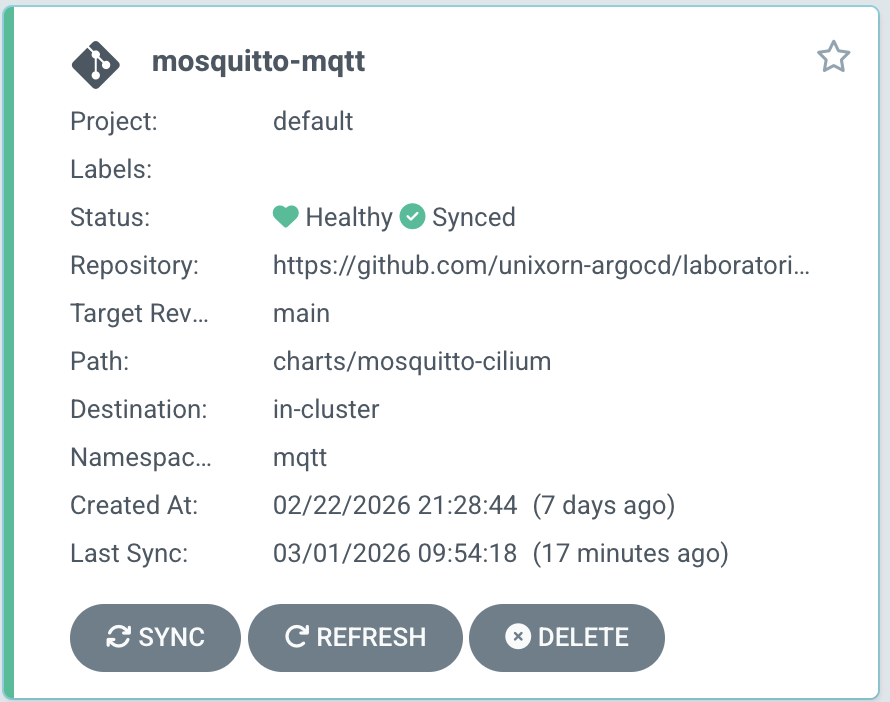
and the detailed view should look similar to this:
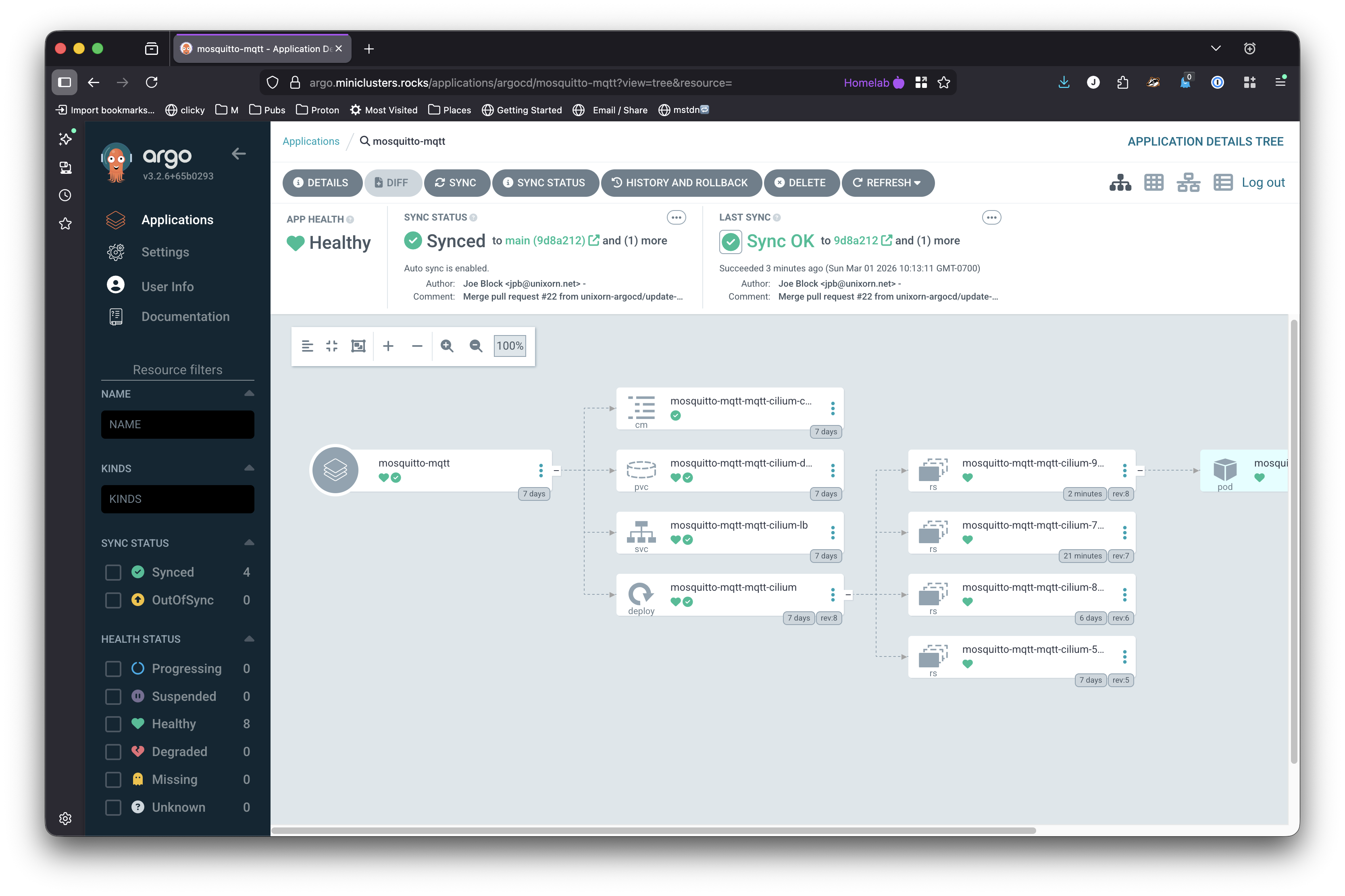
You can see that there are two ReplicaSets - ArgoCD keeps old ReplicaSets to make rollback easier - they’re set to zero replicas since they’ve been superseded by a newer version.