In part two of this homelab kubernetes setup series, we’re going to install & configure cert-manager to use LetsEncrypt with Route 53 so we can use SSL to connect to our services.
- Part 1 - Setting up Talos with a Cilium CNI on proxmox
- Part 2 - Add SSL to Kubernetes using Cilium, cert-manager and LetsEncrypt with domains hosted on Amazon Route 53
- Part 3 - Set up Secret Management with SOPS
- Part 4 - Back up your Talos etcd cluster to a SMB share
- Part 5 - Install ArgoCD
- Part 6 - Install MQTT into a k8s cluster
- Part 7 - Add an ArgoCD git generator
ApplicationSet
The tutorials I’ve seen for using cert-manager with a DNS challenge all use CloudFlare. I have my lab domain on Route 53 so this post will cover that instead.
Pre-requisites
- A domain hosted on Amazon Route 53 that you have administrative rights on.
- A working kubernetes cluster with Cilium installed and configured to be a Gateway. I’m using Talos for mine, but regular kubernetes or k3s clusters will work too. If you need to set up a new cluster, or configure an existing one to use Cilum, read part one of this series.
cilium,kubectl&helm- if you don’t want tobrew installthem, install instructions are at cilium.io, helm.sh and kubectl.
Software Versions
Here are the versions of the software I used while writing this post. Later versions should work, but this is what these instructions were tested with.
| Software | Version |
|---|---|
cert-manager |
1.19.2 |
helm |
4.0.1 |
kubectl |
1.34 |
kubernetes |
1.34.1 |
talos |
1.11.5 |
Instructions
I don’t have any services exposed to the internet, and I’m not interested in exposing a web server just to answer HTTP queries by LetsEncrypt, especially when there’s an objectively better option like using DNS challenges available.
Here’s how to configure cert-manager to use a DNS01 challenge with LetsEncrypt instead of an HTTP one. This will let LetsEncrypt validate ownership of your domain by checking for DNS records created/updated by cert-manager during certificate creation and renewal. As a bonus, using DNS challenges also lets you create wildcard certificates for your domain.
Create an AWS user for cert-manager
To validate certificate requests via DNS, cert-manager is going to need to use AWS credentials that have privilege to update DNS domains. Do not use your root IAM account! You should only ever use your root IAM account to create users that have the minimum privilege they need for explicit tasks. So instead, we’re going to create a user with access limited to updating domains hosted on Route 53.
Create an IAM policy
First create a policy that grants control over Route53. Log in to the AWS console and select Identity and Access Management (IAM), then select Policies from the sidebar, and finally, hit the Create Policy button.
Creating the policy first makes it easier to attach to an IAM group when we create one in the next step.
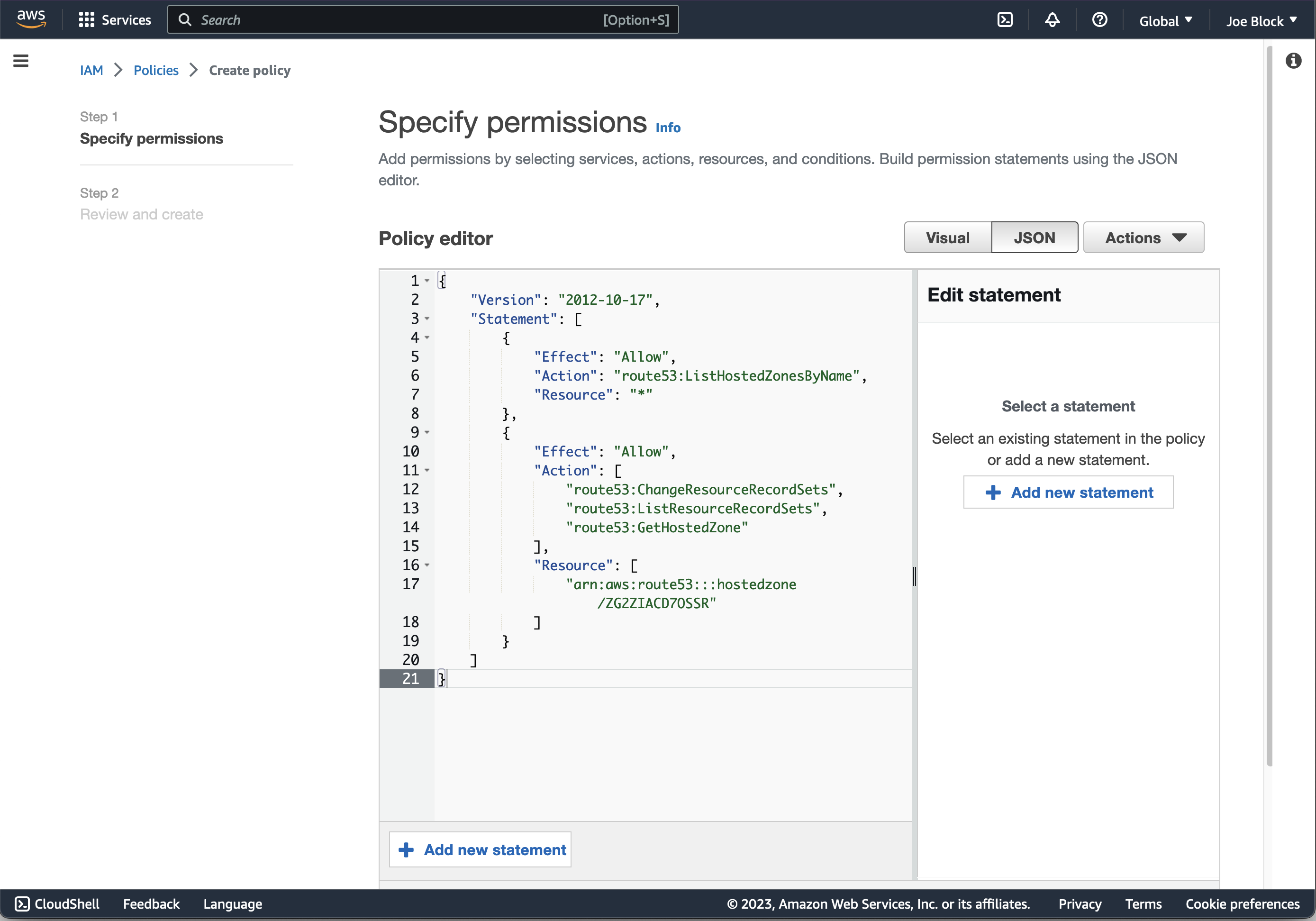
I’ve already created a working policy, so instead of manually adding permissions, click JSON to the right of where it says Policy Editor and paste in this JSON snippet
{
    "Version": "2012-10-17",
    "Statement": [
        {
            "Effect": "Allow",
            "Action": "route53:ListHostedZonesByName",
            "Resource": "*"
        },
        {
            "Effect": "Allow",
            "Action": [
                "route53:ChangeResourceRecordSets",
                "route53:ListResourceRecordSets",
                "route53:GetHostedZone"
            ],
            "Resource": [
                "arn:aws:route53:::hostedzone/YOUR_DOMAINS_ZONE_ID"
            ]
        }
    ]
}
As of 2026-01-03, it should look like this:
Click Next, and give your new policy a name and a description, for example blog-letsencrypt.
Create an IAM group
You could attach a policy to a user, but using a group makes it easier to create other users with this set of permissions. I have a different IAM user that I use for nginx-proxy-manager on my standalone hosts, and I also use different users for my dev and prod clusters.
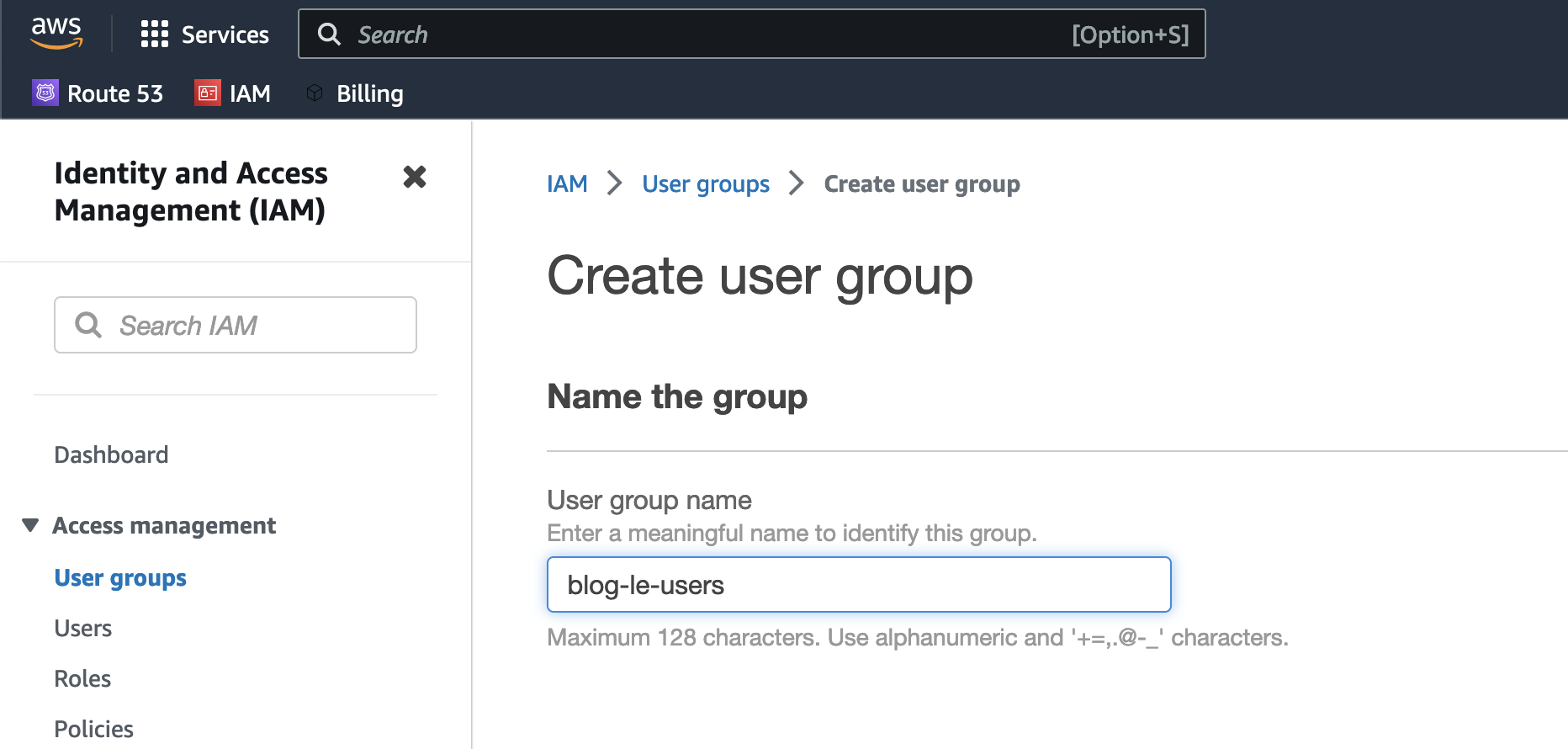
Now create a group, click User Groups in the side bar, then hit the Create Group button.
Give it a name like blog-le-users.
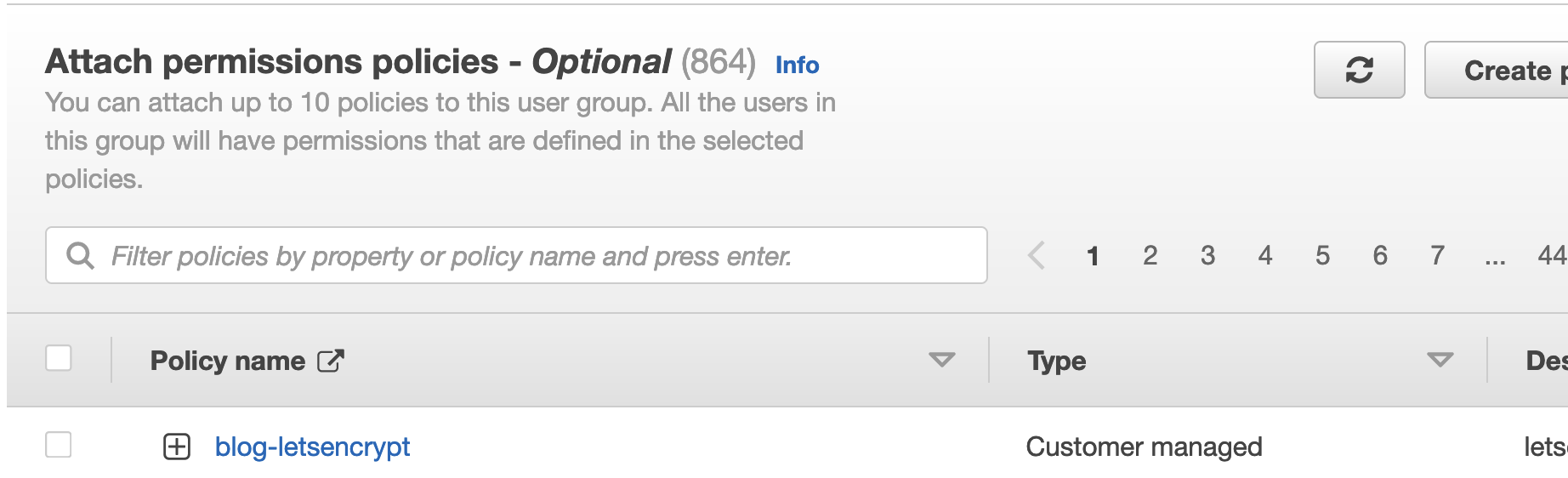
Under Attach permissions policy* select the blog-letsencrypt policy you just created.
Hit the Create Group button on the bottom right of the page.
Create an IAM user
Now that the group and policy are created, you can finally create your R53 IAM user. Click Users in the side bar, then click the Add Users button on the right side of the screen.
Give it a name like r53-acme-user and click Next.
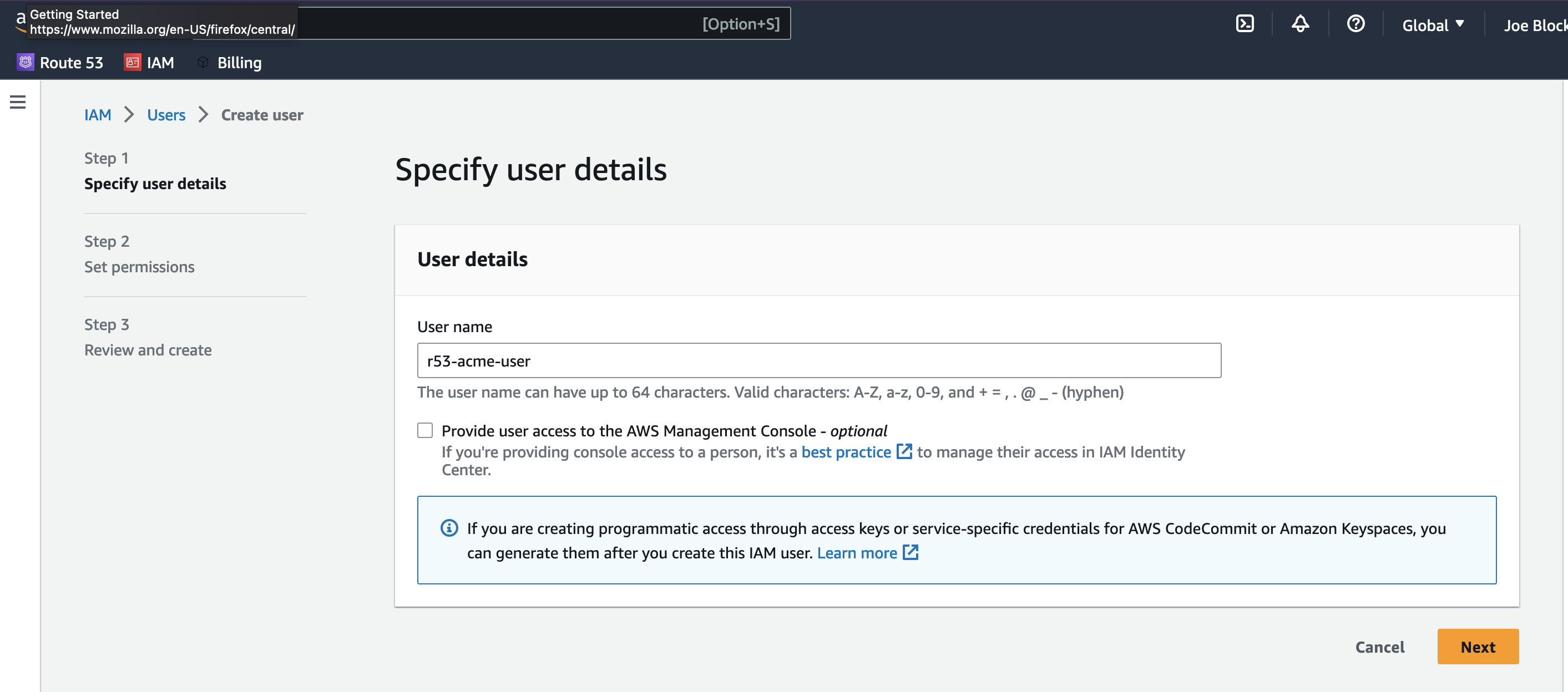
Don’t check the Provide user access to the AWS Management Console checkbox, this user will only be used by cert-manager. Select the blog-le-users group
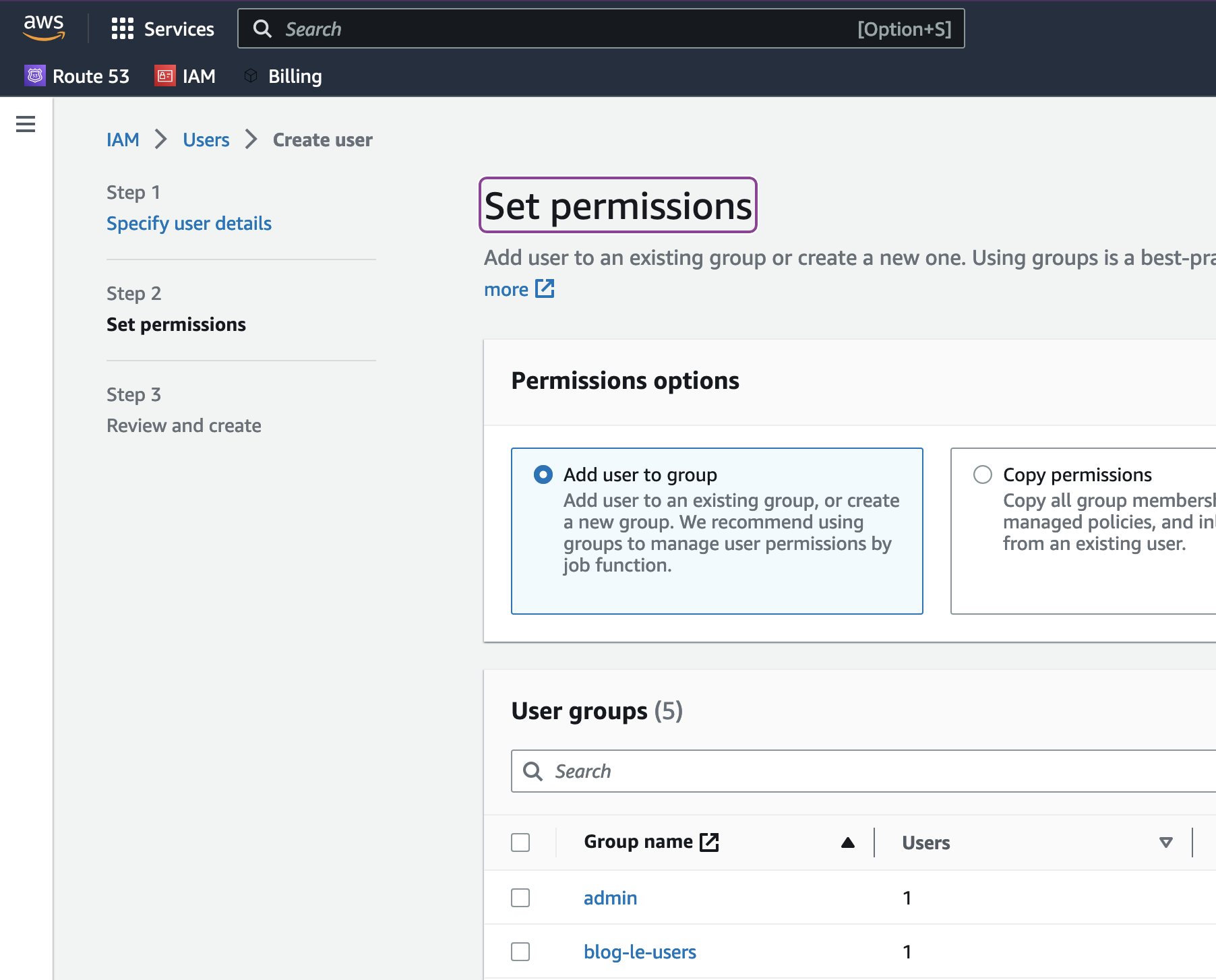
Click Next again.
You’ll see a review and create page:
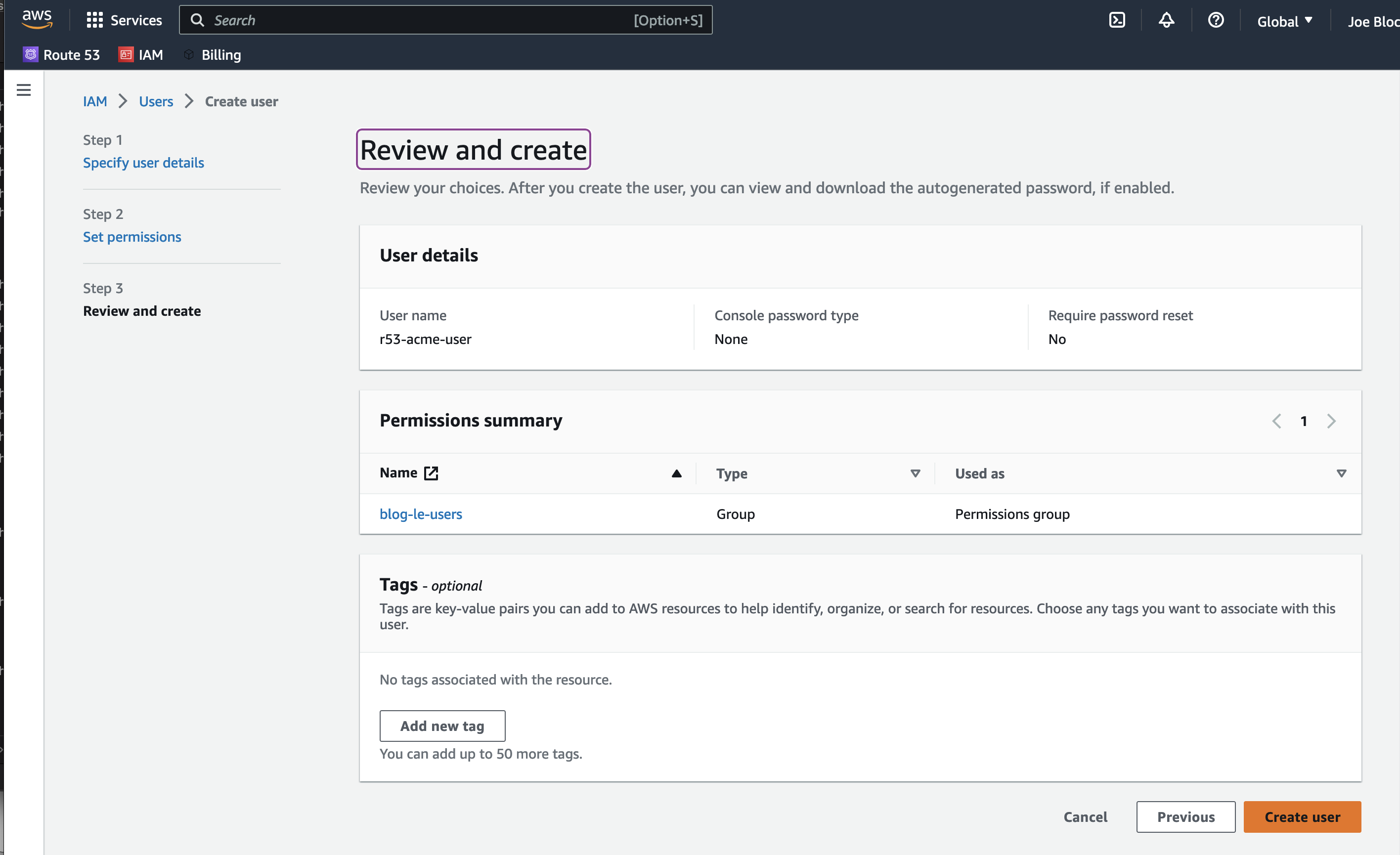
Click Create user on the bottom right of the page.
One last thing - you’ll need to create access credentials for the user. Click on Users in the side bar again, then your brand new r53-acme-user user.
You’ll see an info page about the user, click the Security Credentials tab

Scroll down to Access Keys, and click Create access key.
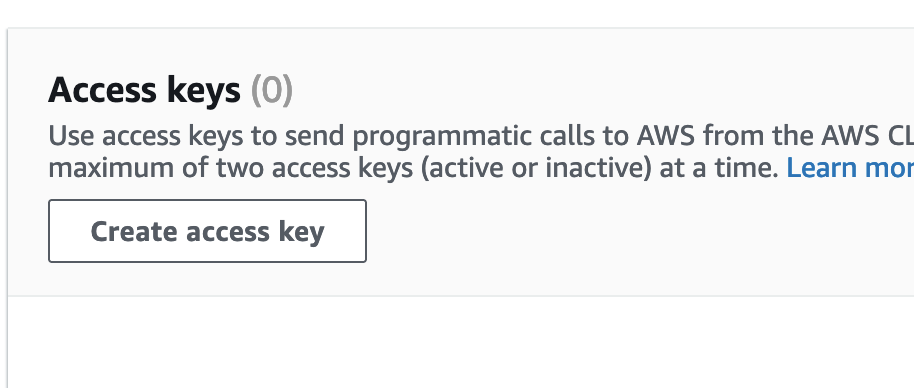
Click Other on the next page
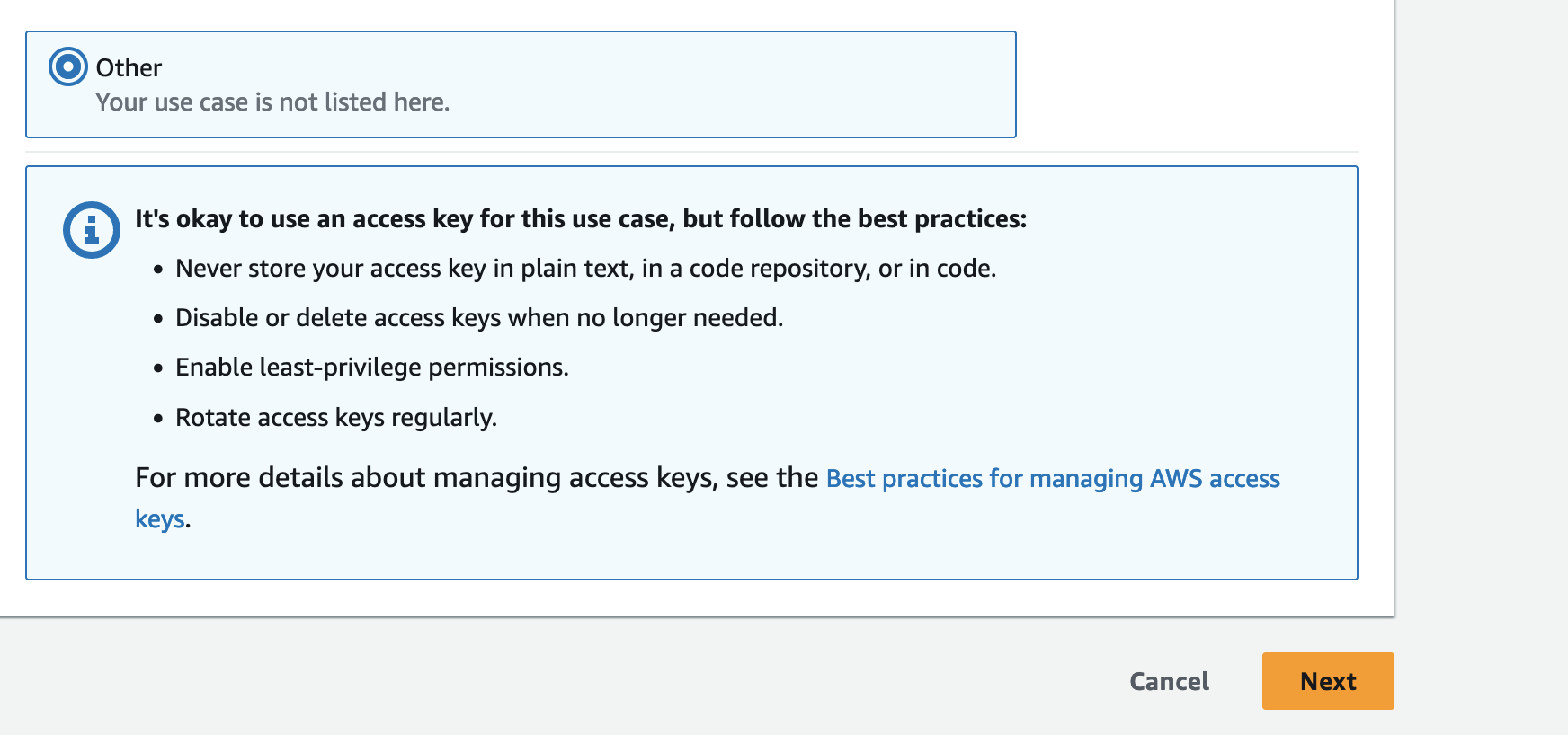
Click Next. Put in letsencrypt for the description,and click Create access key again.
You’ll see something like
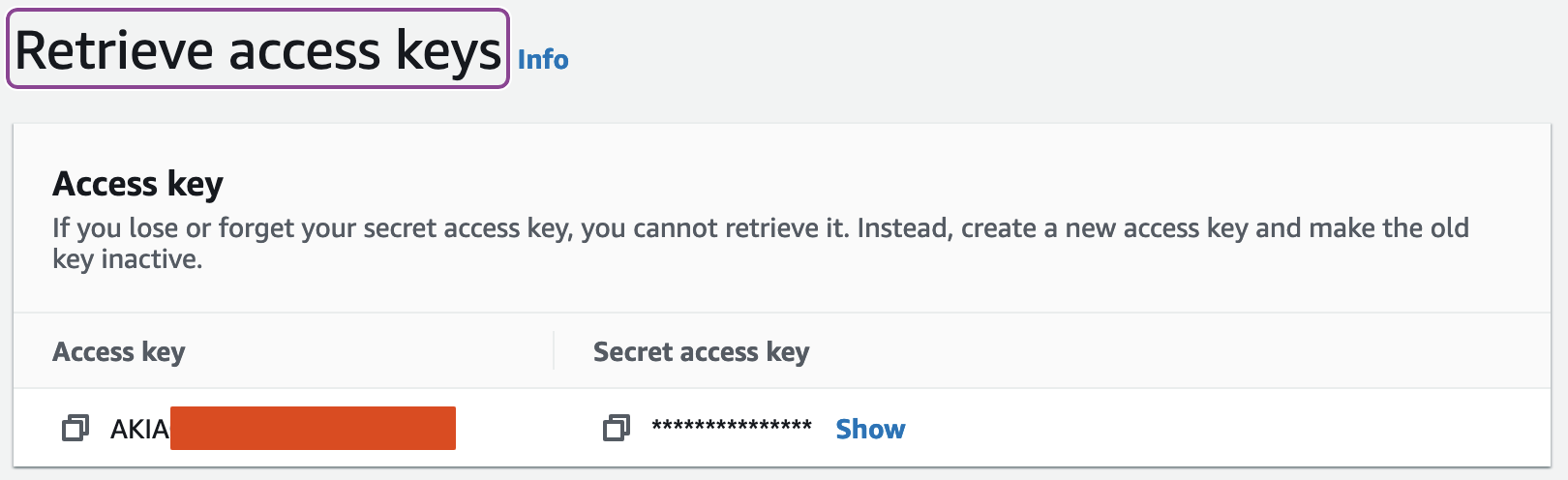
You only get one chance to see the secret key, so store it in your password manager. It isn’t a huge deal if you lose it, you can always create another access key for your user. Copy the access key & secret keys into your password manager for later use.
Install cert-manager
We’re going to use helm to install cert-manager, so first we need to add its helm repository.
Add the Jetstack repo
helm repo add jetstack https://charts.jetstack.io && helm repo update
Get the helm repository gpg keyring
The cert-manager team provides a gpg keyring to validate the helm chart when we install it.
curl -LO https://cert-manager.io/public-keys/cert-manager-keyring-2021-09-20-1020CF3C033D4F35BAE1C19E1226061C665DF13E.gpg
Install cert‑manager and the CRDs it needs
Now that we have AWS credentials set up, let’s use helm to create a cert-manager namespace, verify the chart using the gpg keyring and install cert-manager along with the CRDs it needs.
helm install \
  cert-manager oci://quay.io/jetstack/charts/cert-manager \
  --version v1.19.2 \
  --namespace cert-manager \
  --create-namespace \
  --keyring ./cert-manager-keyring-2021-09-20-1020CF3C033D4F35BAE1C19E1226061C665DF13E.gpg \
  --verify \
  --set crds.enabled=true
Confirm installation with helm list
helm list --all-namespaces
You should see something like
NAME        	NAMESPACE   	REVISION	UPDATED                             	STATUS  	CHART               	APP VERSION
cert-manager	cert-manager	1       	2026-01-03 22:42:45.78814 -0700 MST 	deployed	cert-manager-v1.19.2	v1.19.2
Configure cert-manager
Create an AWS credential secret
Setting up an external secret provider is out of scope for this post. We’re going to store the AWS credentials in a secret. If you want to keep the secret file encrypted, have a look at Part 3 of this series, Set up Secret Management with SOPS.
For tidiness, we’re going to put all the cert-manager confguration yaml files in a cert-manager directory, so mkdir cert-manager.
Create a cert-manager/aws-secret.yaml file.
apiVersion: v1
kind: Secret
metadata:
  name: route53-aws-secret
  namespace: cert-manager
type: Opaque
stringData:
  # Replace these with your actual keys (or use a Kubernetes external secret provider)
  access-key-id: YOUR_R53_IAM_USER_AWS_ACCESS_KEY_ID
  secret-access-key: YOUR_R53_IAM_USER_AWS_SECRET_ACCESS_KEY
Create a ClusterIssuer
Create cert-manager/cluster-issuer.yaml. Make sure you set the email field to your real email so LetsEncrypt can notify you about policy changes or issues.
apiVersion: cert-manager.io/v1
kind: ClusterIssuer
metadata:
  name: letsencrypt-dns-r53
spec:
  acme:
    # Use the production server for real certificates; switch to the staging URL while testing.
    server: https://acme-v02.api.letsencrypt.org/directory
    # staging: https://acme-staging-v02.api.letsencrypt.org/directory
    email: your@email.example   # <-- change to your real contact address
    privateKeySecretRef:
      name: letsencrypt-dns-r53-account-key
    solvers:
    - dns01:
        route53:
          region: us-east-1               # Region where your hosted zone lives
          hostedZoneID: "YOUR_ZONE_ID" # Articles I read said this was optional, but when I left it empty cert‑manager didn't discover it and my certs never got to the ready state
          accessKeyIDSecretRef:
            name: route53-aws-secret
            key: access-key-id
          secretAccessKeySecretRef:
            name: route53-aws-secret
            key: secret-access-key
Apply the configuration
kubectl apply -f cert-manager # Apply all the yaml files in the directory
Confirm that the ClusterIssuer is working
Create a standlone certificate with the ClusterIssuer so that we can confirm that LetsEncrypt is working before we try to use it with an Ingress.
# standalone-certificate.yaml
apiVersion: cert-manager.io/v1
kind: Certificate
metadata:
  name: wildcard-yourdomain-com
  namespace: default
spec:
  secretName: yourdomain-com-tls
  dnsNames:
  - 'yourdomain.com'
  - '*.yourdomain.com' # This is a homelab, so I'm ok with using a wildcard certificate for all my services
  issuerRef:
    name: letsencrypt-dns-r53
    kind: ClusterIssuer
Make sure the secretName is unique to this certificate or you’ll get mysterious breakages, then apply it.
kubectl apply -f standalone-certificate.yaml
Wait a few seconds, then run
kubectl get certificate --all-namespaces
You should see something like
NAMESPACE   NAME                          READY   SECRET                            AGE
default     wildcard-yourdomain-com-cert  True    yourdomain-com--tls.              1m
The first time I made a certificate it took almost a minute, so don’t assume things are broken if the certificate doesn’t show as ready right away.
Behind the scenes, cert-manager is creating a certificate, creating the required DNS entries, posting an ACME request to LetsEncrypt, waiting for LetsEncrypt to verify the DNS records and sign your certificate, and then finally loading the signed certfificate. It can take a literal minute if LetsEncrypt is busy.
If you run kubectl describe certificate wildcard-your-domain-com you should see something like this:
Name:         wildcard-your-domain-cert
Namespace:    default
Labels:       <none>
Annotations:  <none>
API Version:  cert-manager.io/v1
Kind:         Certificate
Metadata:
  Creation Timestamp:  2026-01-03T07:18:54Z
  Generation:          1
  Resource Version:    225621
  UID:                 12345678-90AB-CDEFGHIJK-LMNOPQRSTUVW
Spec:
  Dns Names:
    www.yourdomain.com
  Issuer Ref:
    Kind:       ClusterIssuer
    Name:       letsencrypt-dns-r53
  Secret Name:  your-domain-com-tls
Status:
  Conditions:
    Last Transition Time:  2026-01-03T07:19:02Z
    Message:               Certificate is up to date and has not expired
    Observed Generation:   1
    Reason:                Ready
    Status:                True
    Type:                  Ready
  Not After:               2026-04-03T06:20:29Z
  Not Before:              2026-01-03T06:20:30Z
  Renewal Time:            2026-03-04T06:20:29Z
  Revision:                1
Events:                    <none>
Great, the cert exists and has status of ready, time to test it.
Create a playground workload
Create a playground directory, and create playground/01-playground-nginx.yaml
# 01-playground-nginx.yaml
# Create the playground namespace
apiVersion: v1
kind: Namespace
metadata:
  labels:
    kubernetes.io/metadata.name: playground
  name: playground
---
# Create an nginx deployment.
apiVersion: apps/v1
kind: Deployment
metadata:
  name: playground-nginx-app
  namespace: playground
spec:
  selector:
    matchLabels:
      app: playground-nginx-pod  # <-- must match pod labels exactly
  replicas: 1
  template:
    metadata:
      labels:
        app: playground-nginx-pod
    spec:
      # Talos is very security oriented, so we have to set up the
      # security context explicitly
      # ---------- Pod‑level security settings ----------
      securityContext:
        runAsNonRoot: true
        runAsUser: 101 # non‑root UID that the image can run as
        seccompProfile:
          type: RuntimeDefault
        # Uncomment if you need a shared FS group for volume writes
        # fsGroup: 101
      # ---------- Containers ----------
      containers:
        - name: nginx-playground-container
          image: nginxinc/nginx-unprivileged:latest # Alpine, but we force a non‑root UID
          imagePullPolicy: IfNotPresent
          ports:
            - containerPort: 8080
          # talos requires us to specify our resources instead of
          # letting k8s YOLO them
          resources:
            requests:
              memory: "64Mi"
              cpu: "250m"
            limits:
              memory: "128Mi"
              cpu: "500m"
          securityContext:
            allowPrivilegeEscalation: false
            capabilities:
              drop:
                - ALL
---
# And finally, create a service
apiVersion: v1
kind: Service
metadata:
  name: playground-nginx-service
  namespace: playground
spec:
  selector:
    app: playground-nginx-pod
  ports:
    - name: http
      port: 80 # This is what the service is listening on, and what will be routed to
      targetPort: 8080 # Port the pods are listening on, don't route directly here!
Configure Cilium
Create a Gateway
We’re going to create a gateway that listens to both HTTP and HTTPS traffic. Create playground/02-playground-gateway
We’re specifying a specific IP address from our pool so that it stays static and we can create a DNS entry for it
# 02-playground-gateway
apiVersion: gateway.networking.k8s.io/v1
kind: Gateway
metadata:
  name: playground-gateway
  # Note - we are _not_ putting this in a namespace so our workloads can
  # share it.
spec:
  gatewayClassName: cilium
  addresses:
    - type: IPAddress
      value: 10.0.1.160 # Force the gateway to grab a specific IP from the pool
  listeners:
  - name: http
    protocol: HTTP
    port: 80
    allowedRoutes:
      namespaces:
        from: All
  - name: https
    protocol: HTTPS
    port: 443
    allowedRoutes:
      namespaces:
        from: All
    tls:
      certificateRefs:
      - kind: Secret
        name: yourdomain-com-tls
Create the gateway now so you can find out what IP address it gets.
kubectl apply -f playground/02-playground-gateway.yaml && \
  kubectl get gateway --all-namespaces
You’ll see something like
NAMESPACE   NAME                 CLASS    ADDRESS      PROGRAMMED   AGE
default     playground-gateway   cilium   10.0.1.160   True         1h
For the rest of these instructions, we’re going to assume your gateway is 10.0.1.160.
Go to Amazon’s R53 control panel and create an A record in your domain, ip-160.yourdomain.com with the address 10.0.1.160.
Create HTTPRoutes
We’re going to create two HTTPRoutes, one for HTTP and one for HTTPS. Create playground/03-httproutes.yaml
# 03-httproutes.yaml
apiVersion: gateway.networking.k8s.io/v1
kind: HTTPRoute
metadata:
  name: playground-http-route
  namespace: playground
spec:
  parentRefs:
  - name: playground-gateway
    namespace: default
    sectionName: http
  hostnames:
  - "ip-160.yourdomain.com"
  rules:
  - backendRefs:
    - name: playground-nginx-service
      port: 80
---
apiVersion: gateway.networking.k8s.io/v1
kind: HTTPRoute
metadata:
  name: playground-ssl-route
  namespace: playground
spec:
  parentRefs:
  - name: playground-gateway
    namespace: default
    sectionName: https
  hostnames:
  - "ip-160.yourdomain.com"
  rules:
  - backendRefs:
    - name: playground-nginx-service
      port: 80
Apply and test the routes
Now we’re finally ready to create our routes
kubectl apply -f playground && \
  kubectl get gateway && echo && \
  kubectl get httproute --all-namespaces
You should see something like this:
NAME                 CLASS    ADDRESS      PROGRAMMED   AGE
playground-gateway   cilium   10.0.1.160   True         23h

NAMESPACE    NAME                    HOSTNAMES                             AGE
playground   playground-http-route   ["ip-160.yourdomain.com"]             3m
playground   playground-ssl-route    ["ip-160.yourdomain.com"]             3m
You should now see the Welcome to nginx! page when you go to either http://ip-160.yourdomain.com or https://ip-160.yourdomain.com.
Bonus - create an http -> https redirect
If I go to the http url instead of https, I want to be automagically redirected to https so I don’t accidentally send any login credentials on an unencrypted connection.
Update our HTTProutes
Our gateway is already configured to listen on both http and https, so we’re going to create an HTTPRoute that listens on port 80 and redirects any hits to port 443.
Create playground/04-redirect-http-to-https.yaml
# 04-redirect-http-to-https.yaml
kind: HTTPRoute
apiVersion: gateway.networking.k8s.io/v1beta1
metadata:
  name: http-to-https-redirect
  namespace: default
spec:
  parentRefs:
  - namespace: default
    name: playground-gateway
    sectionName: http
  rules:
  - filters:
    - type: RequestRedirect
      requestRedirect:
        scheme: https
Now let’s replace the old http route
kubectl delete httproute playground-http-route -n playground && \
  kubectl apply -f playground/04-redirect-http-to-https.yaml && \
  curl -iv ip160.yourdomain.com
You should see something like this - on line 14 you can see it get a 302 and on line 29 it opens a new connection to port 443.
* Host ip-160.yourdomain.com:80 was resolved.
* IPv6: (none)
* IPv4: 10.0.1.160
*   Trying 10.0.1.160:80...
* Established connection to ip-160.yourdomain.com (10.0.1.160 port 80) from 10.0.1.121 port 64799
* using HTTP/1.x
> GET / HTTP/1.1
> Host: ip-160.yourdomain.com
> User-Agent: curl/8.17.0
> Accept: */*
>
* Request completely sent off
< HTTP/1.1 302 Found
HTTP/1.1 302 Found
< location: https://ip-160.yourdomain.com:443/
location: https://ip-160.yourdomain.com:443/
< date: Mon, 05 Jan 2026 00:19:16 GMT
date: Mon, 05 Jan 2026 00:19:16 GMT
< server: envoy
server: envoy
< content-length: 0
content-length: 0
* Ignoring the response-body
* setting size while ignoring
<

* Connection #0 to host ip-160.yourdomain.com:80 left intact
* Clear auth, redirects to port from 80 to 443
* Issue another request to this URL: 'https://ip-160.yourdomain.com:443/'
* Host ip-160.yourdomain.com:443 was resolved.
* IPv6: (none)
* IPv4: 10.0.1.160
*   Trying 10.0.1.160:443...
* ALPN: curl offers h2,http/1.1
* TLSv1.3 (OUT), TLS handshake, Client hello (1):
* SSL Trust Anchors:
*   Native: Apple SecTrust
*   OpenSSL default paths (fallback)
* TLSv1.3 (IN), TLS handshake, Server hello (2):
* TLSv1.3 (IN), TLS change cipher, Change cipher spec (1):
* TLSv1.3 (IN), TLS handshake, Encrypted Extensions (8):
* TLSv1.3 (IN), TLS handshake, Certificate (11):
* TLSv1.3 (IN), TLS handshake, CERT verify (15):
* TLSv1.3 (IN), TLS handshake, Finished (20):
* TLSv1.3 (OUT), TLS change cipher, Change cipher spec (1):
* TLSv1.3 (OUT), TLS handshake, Finished (20):
* SSL connection using TLSv1.3 / TLS_CHACHA20_POLY1305_SHA256 / x25519 / RSASSA-PSS
* ALPN: server did not agree on a protocol. Uses default.
* Server certificate:
*   subject: CN=yourdomain.com
*   start date: Jan  3 06:20:30 2026 GMT
*   expire date: Apr  3 06:20:29 2026 GMT
*   issuer: C=US; O=Let's Encrypt; CN=R13
*   Certificate level 0: Public key type RSA (2048/112 Bits/secBits), signed using sha256WithRSAEncryption
*   Certificate level 1: Public key type RSA (2048/112 Bits/secBits), signed using sha256WithRSAEncryption
*   Certificate level 2: Public key type RSA (4096/152 Bits/secBits), signed using sha256WithRSAEncryption
*   subjectAltName: "ip-160.yourdomain.com" matches cert's "*.yourdomain.com"
* SSL certificate verified via OpenSSL.
* Established connection to ip-160.yourdomain.com (10.0.1.160 port 443) from 10.0.1.121 port 64800
* using HTTP/1.x
> GET / HTTP/1.1
> Host: ip-160.yourdomain.com
> User-Agent: curl/8.17.0
> Accept: */*
>
* Request completely sent off
* TLSv1.3 (IN), TLS handshake, Newsession Ticket (4):
* TLSv1.3 (IN), TLS handshake, Newsession Ticket (4):
< HTTP/1.1 200 OK
HTTP/1.1 200 OK
< server: envoy
server: envoy
< date: Mon, 05 Jan 2026 00:19:17 GMT
date: Mon, 05 Jan 2026 00:19:17 GMT
< content-type: text/html
content-type: text/html
< content-length: 615
content-length: 615
< last-modified: Tue, 28 Oct 2025 12:05:10 GMT
last-modified: Tue, 28 Oct 2025 12:05:10 GMT
< etag: "6900b176-267"
etag: "6900b176-267"
< accept-ranges: bytes
accept-ranges: bytes
< x-envoy-upstream-service-time: 1
x-envoy-upstream-service-time: 1
<

<!DOCTYPE html>
<html>
<head>
<title>Welcome to nginx!</title>
<style>
html { color-scheme: light dark; }
body { width: 35em; margin: 0 auto;
font-family: Tahoma, Verdana, Arial, sans-serif; }
</style>
</head>
<body>
<h1>Welcome to nginx!</h1>
<p>If you see this page, the nginx web server is successfully installed and
working. Further configuration is required.</p>

<p>For online documentation and support please refer to
<a href="http://nginx.org/">nginx.org</a>.<br/>
Commercial support is available at
<a href="http://nginx.com/">nginx.com</a>.</p>

<p><em>Thank you for using nginx.</em></p>
</body>
</html>
* Connection #1 to host ip-160.yourdomain.com:443 left intact
Potential Problems
curl to your http port doesn’t get redirected
You curl to the http port of your host and instead of getting redirected, you see the nginx welcome page.
Make sure you deleted the old route before you added the redirect. Check with kubectl get httproute --all-namespaces if you see both of them as here
$ kubectl get httproute -A
NAMESPACE    NAME                     HOSTNAMES                             AGE
default      http-to-https-redirect                                         117s
playground   playground-http-route    ["ip-160.yourdomain.com"]             200s
playground   playground-ssl-route     ["ip-160.yourdomain.com"]             200s
Run kubectl delete httproute playground-http-route -n playground and try again.